
 Class for Zoom is the platform used for live classes at Insight PA. Use the guides below to learn more about how to use this platform, as well as receive support.
Class for Zoom works best on your student laptop. Due to the limitations of Class for Zoom on mobile devices, joining your live classes from the Schoology mobile app is not recommended.
Joining Classes
Privacy Settings
In Privacy Mode, only your instructor will be able to see your video feed. To enable Privacy Mode, complete the following steps:
- Look for “View” in the upper right corner and click where it says “Gallery View”.
- Look for “Privacy Mode” and click the arrow.
- Select “Enabled” to be viewable only by Insight PA teachers and staff.
- Select “Disabled” to be viewable by everyone in the class.
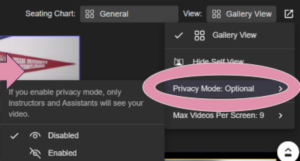
Please note the following about Privacy Mode:
- Students’ videos will not show on class recordings, regardless of the Privacy Mode setting.
- Privacy mode only makes video private, not audio. Everyone in the class will still be able to hear students when they are on the mic.
- Privacy mode settings are not saved for every session – students will need to enable it in each class session they wish to use it.
Visit this page to learn how to use a virtual background in Class for Zoom.
Please note that if your system performance level is set to Moderate or Minimal, you will not be able to use a virtual background.